New Printing Updates: More Flexibility, Less Time Preparing
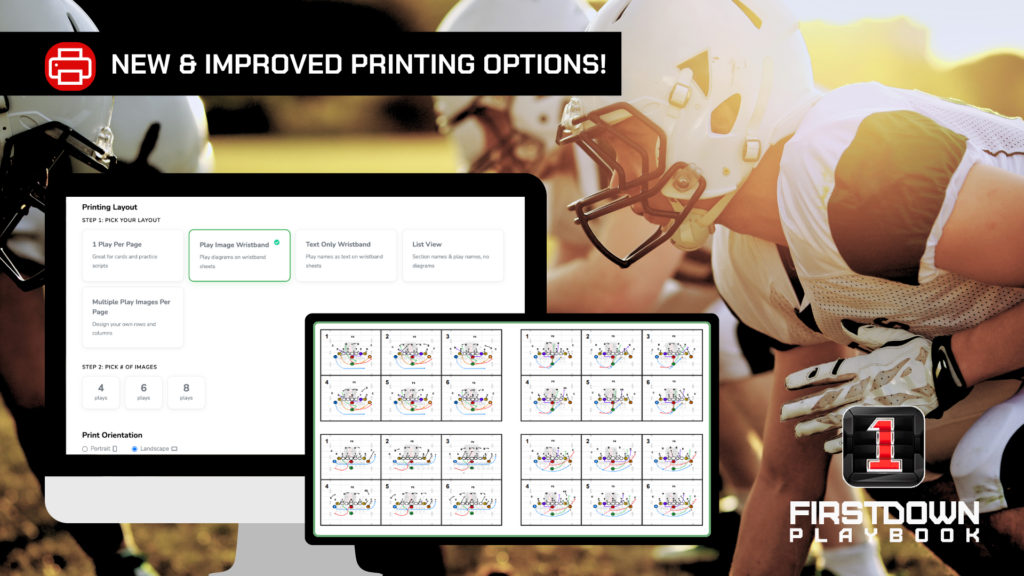
Preparing for practice and game day often means printing playbooks, call sheets, and wristband sheets. We know that getting everything formatted just right can take time, so we’ve updated the printing experience in FirstDown PlayBook to make it faster, more flexible, and easier to use.
These new printing enhancements give you more control over how your playbooks are organized while reducing repetitive work, so you can spend less time preparing and more time coaching.
Updated Printing Options: What’s New?
Print Multiple Wristband Sheets at Once
One of the biggest time-saving updates is the ability to print multiple wristband sheets in a single job.
Instead of printing one copy at a time or manually duplicating pages, simply choose how many copies you need before printing.
Benefits include:
- Faster game-day preparation
- Fewer steps to save you time
- Reduce paper waste
- Easy printing for your entire team
Create Custom Grid Layouts
Regardless of if you are a youth football coach or teach at an older level, every coach has a different way of organizing their playbook. The new custom grid option allows you to choose exactly how your plays are displayed. Just select the number of rows and columns on each page (up to 10 × 10).
Custom grids are helpful because they give you the flexibility to build layouts that fit your coaching style and printing needs.
Perfect for:
- Custom playbook layouts
- Team handouts
- Wristband sheets
- Call sheets
- Practice cards
Print a Clean List View
Need a simple, text-only version of your playbook?
You can now print your playbook in List View, in the same way as the layout found in the FirstDown PlayBook mobile app. Plays are organized with color-coded sections and indentation, in order to make them easy to read and navigate.
Best for:
- Staff meetings
- Play installation
- Quick-reference playbooks
- Saving paper when diagrams aren’t needed
How to Use the Updated Printing Options
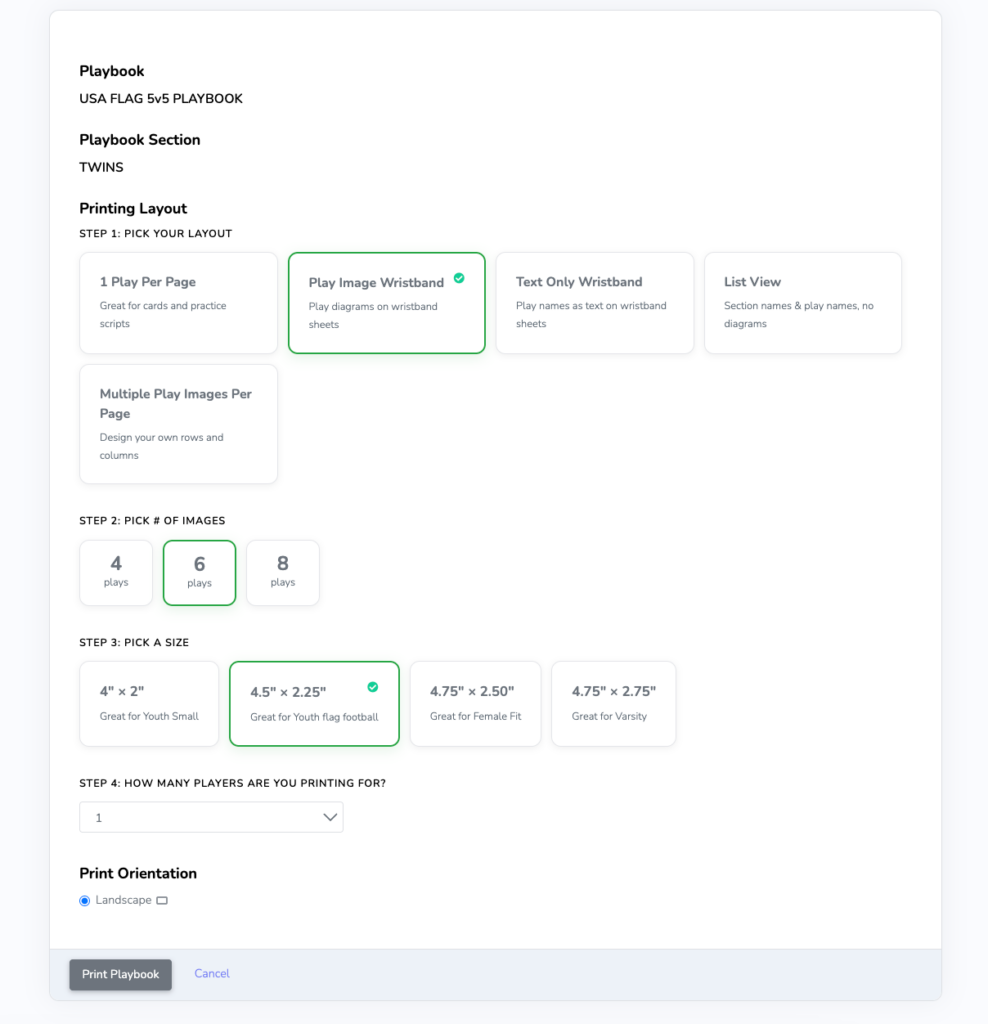
Printing your playbooks is simple:
- Open the playbook you’d like to print.
- Click the 3 dots and then select Print.
- Choose the print layout that best fits your needs or customize your grid layout.
- Select number of images (4 plays, 6 plays, or 8 plays).
- Choose the print size (4” x 2”, 4.5” x 2.25”, 4.75” x 2.50”, or 4.75” x 2.75”).
- Select the number of players or copies that you’re printing for.
- Preview your document and then print it or save it as a PDF.
Frequently Asked Questions
What is List View?
List View prints a text-only version of your playbook using the same organized format as the FirstDown PlayBook mobile app. Sections are color-coded and indented for easy reading.
Can I customize how many plays appear on a page?
Yes. Now you can create custom layouts by selecting the number of rows and columns you want, with support for grids up to 10 × 10.
Can I print multiple wristband sheets?
Yes. Simply choose the number of players or coaches you’re printing for, and the system will generate them in a single print job.
Start Using the New Printing Options Today
These updated printing options were designed to make printing faster and more flexible based on feedback from coaches. Whether you’re creating wristband sheets, call sheets, or full playbooks, you’ll spend less time formatting and more time preparing your team.
Log in today or start a free trial to explore the new features and see how they can simplify your workflow before practice and on game day.
Less time printing means more time coaching.